Brushes
Brushes are the game’s named images: HUD icons, buttons, backdrops. Each one is a rectangle of a texture (an “atlas”), defined in a Window/*.brushes file listed in brush.manifest. Buttons have one image per state – Normal, CursorOver, Pressed, Focused, Disabled.
The brush list
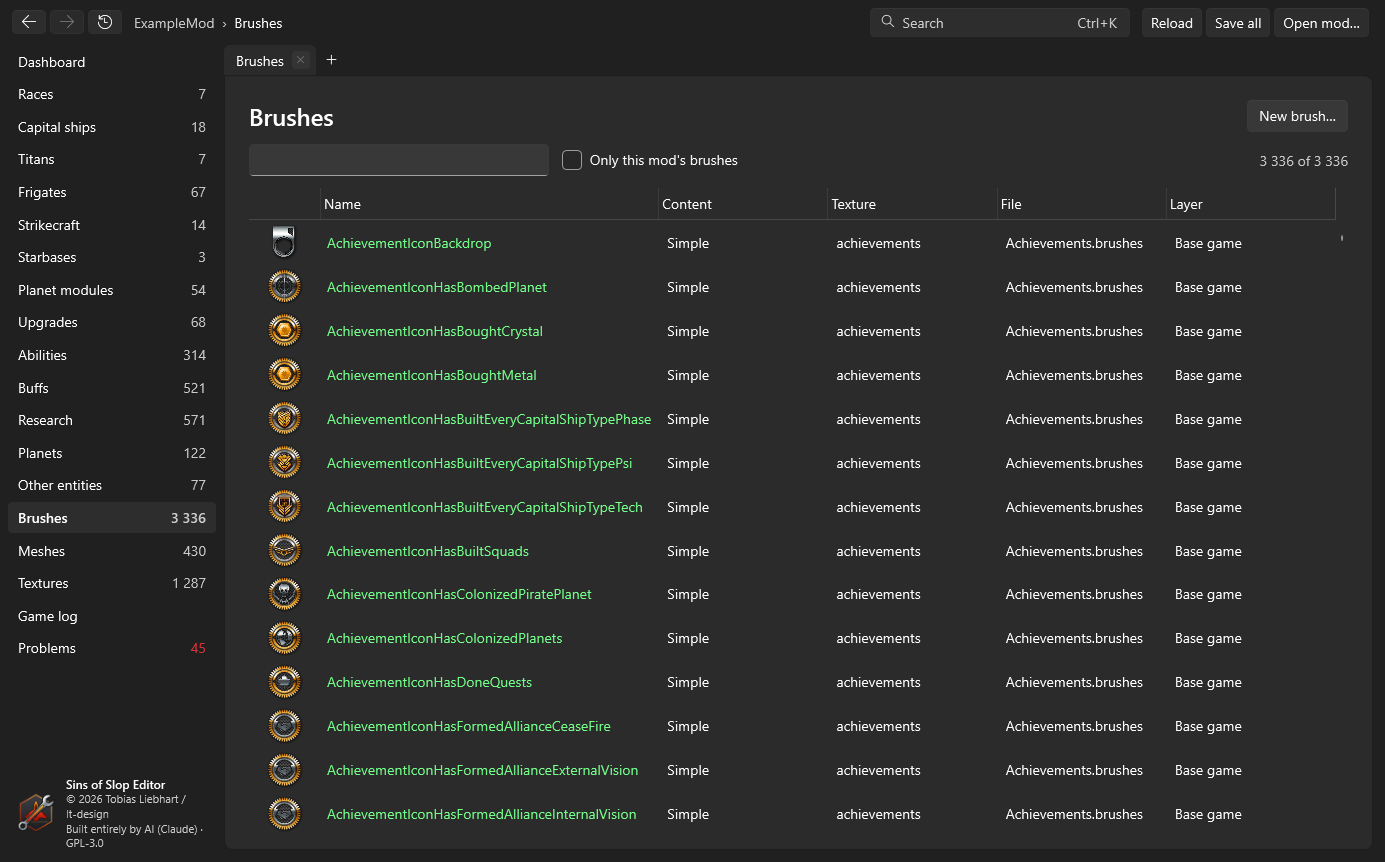
Brushes in the sidebar lists every brush with a preview, its file, texture and layer. Search by name, texture or file; Only this mod’s brushes hides the rest. New brush… starts an empty one.
The brush editor
Open a brush from the list, or with the pencil next to a brush reference on an entity page.
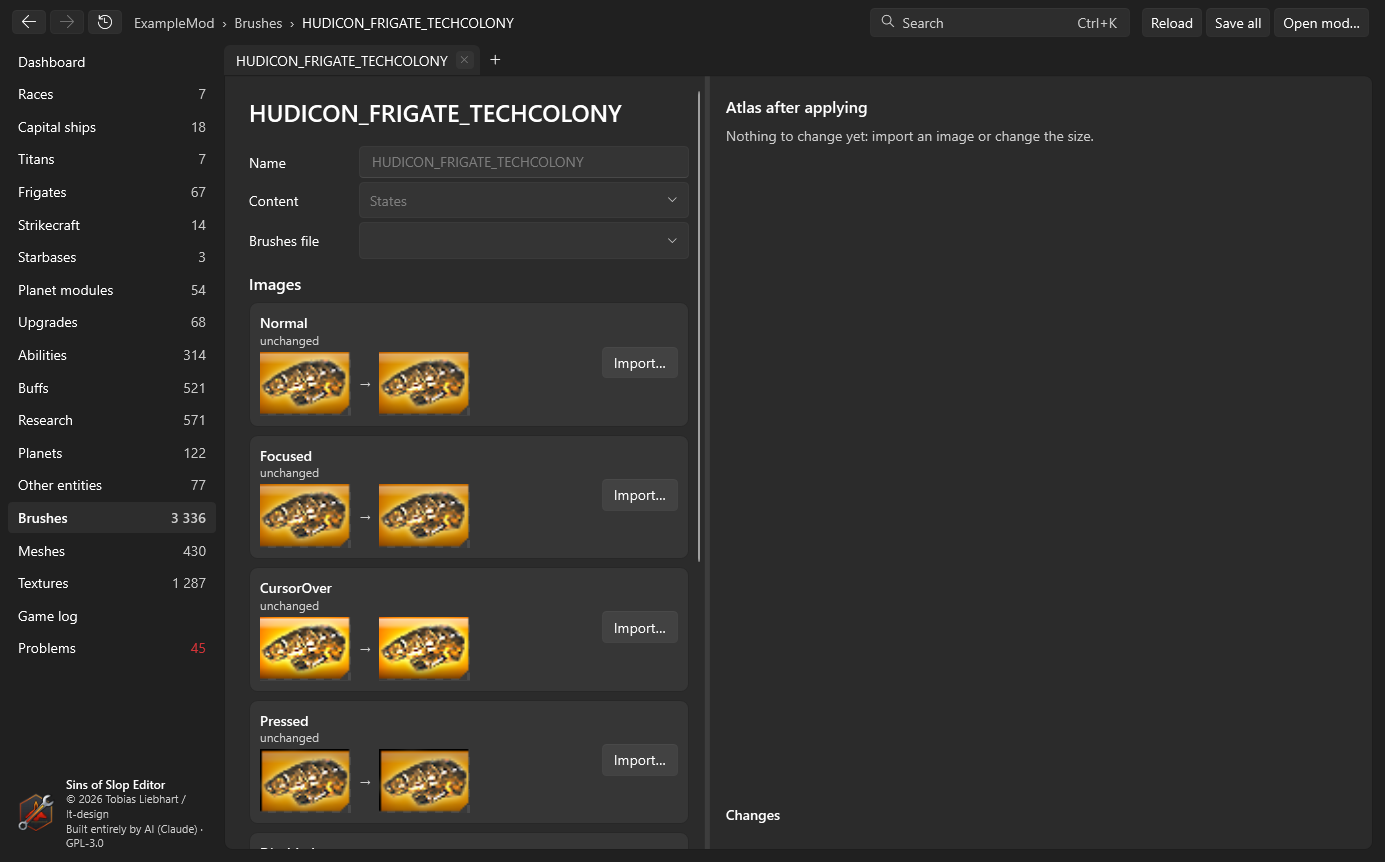
- Name and Brushes file – where the brush is defined. A new brush can go into an existing file or a new one in
Window/(added tobrush.manifest). - Content – Simple (one image) or States (the five button states).
- Images – one slot per state. Import… loads a picture (PNG, JPG, BMP, TGA, DDS …). Fit keeps its proportions with transparent margins, Fill crops, Stretch uses the exact size. Generate the other states from Normal makes CursorOver brighter, Pressed darker and Disabled grey; a state with its own imported image keeps it. Undo import brings back the current image.
- Texture (atlas) – the new images go into an existing texture (packed into free space, the atlas grows if needed) or a new texture (TGA as the game uses for most icons, or DXT5 DDS, which is smaller). If the new images have the same size as the old ones, they are written in place and nothing else moves.
- Changes lists every file that will be written; Atlas after applying shows the texture as it will be. Apply writes them: the texture (with mipmaps for DDS) and every brush whose rectangle moved.
A brush’s picture can also come straight from the mesh view: render a ship on the brush’s current image and send it to the brush editor with Use in brush….